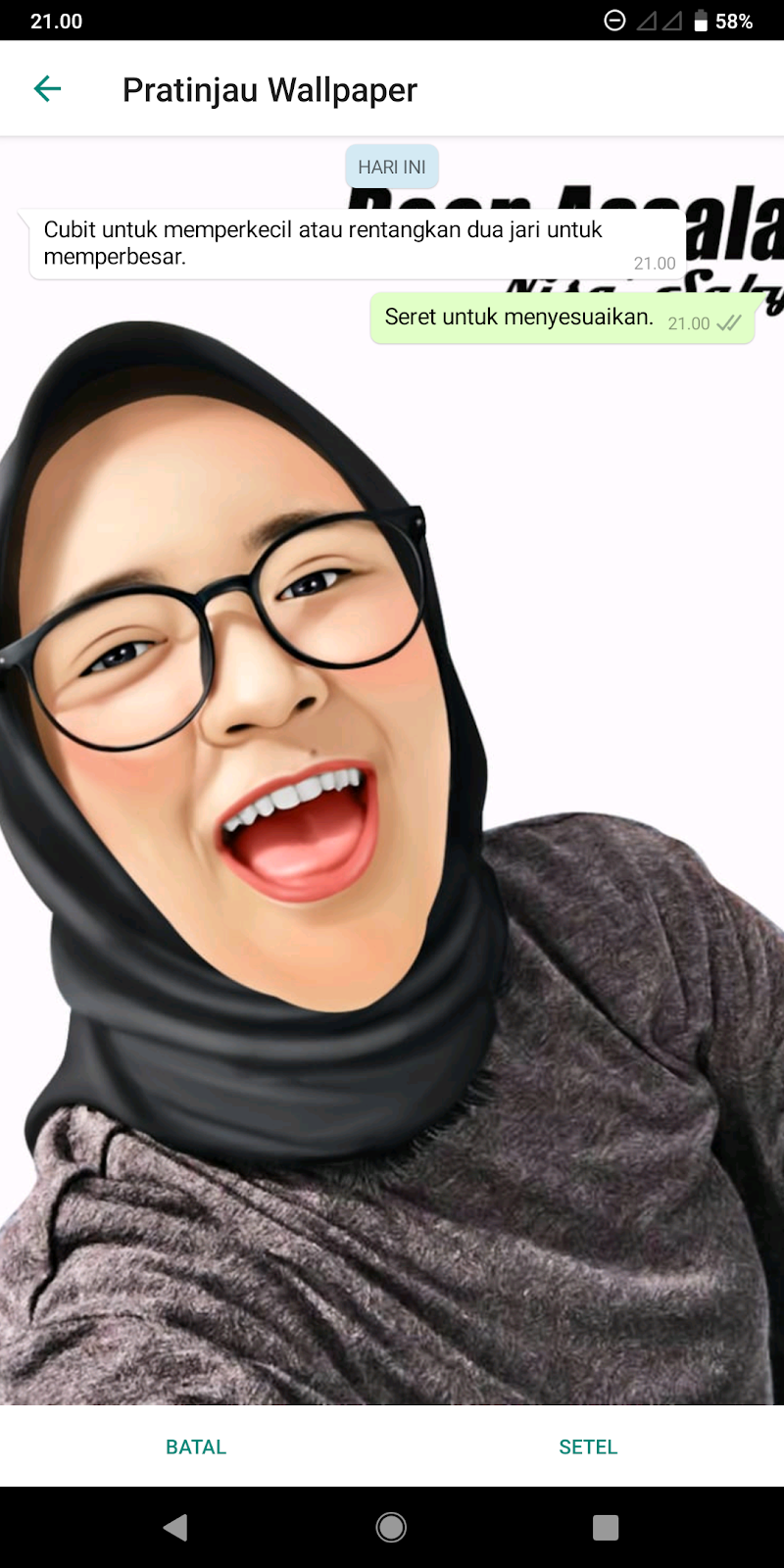
 By Default Bacground or Wallpaper on the WhatsApp Blank White Chat page or the WhatsApp Motif icon. we can arrange and change the Bacground on the WhatsApp Chat page to our liking using nature-themed wallpapers or using a personal photo or boyfriend's photo to make it look more attractive and colorful.
To change the Bacground or Wallpaper WhatsApp Chat Page enter the settings menu, then select the Chat menu (Backup, History, Wallpaper).

Select Wallpaper Menu to start changes

Several options will appear Android system applications that support this command select Gallery

After making your choices, select Set to apply and see the results by opening one of your friends' chats or new chats. Automatically backgound the Chat page according to the image selected and applied.